Wusooly Helper
Connect your shop phone to the POS. See who’s calling and get WhatsApp alerts at the counter.
- Caller ID
- WhatsApp alerts
- QR pairing
Download for Android
v0.5.2 · 3.4 MB
Open this page on your phone to install.
- Requires
- Android 10+
- Updated
- Nov 14, 2026
Signed by Wusooly
Connect in 3 steps
- Step 1
Install
Download the APK on your shop phone and open it. Allow installs from your browser if asked.
- Step 2
Pair
On the POS, add this phone as a Caller ID source. Then open Helper and scan the QR code shown on the POS.
- Step 3
Allow access
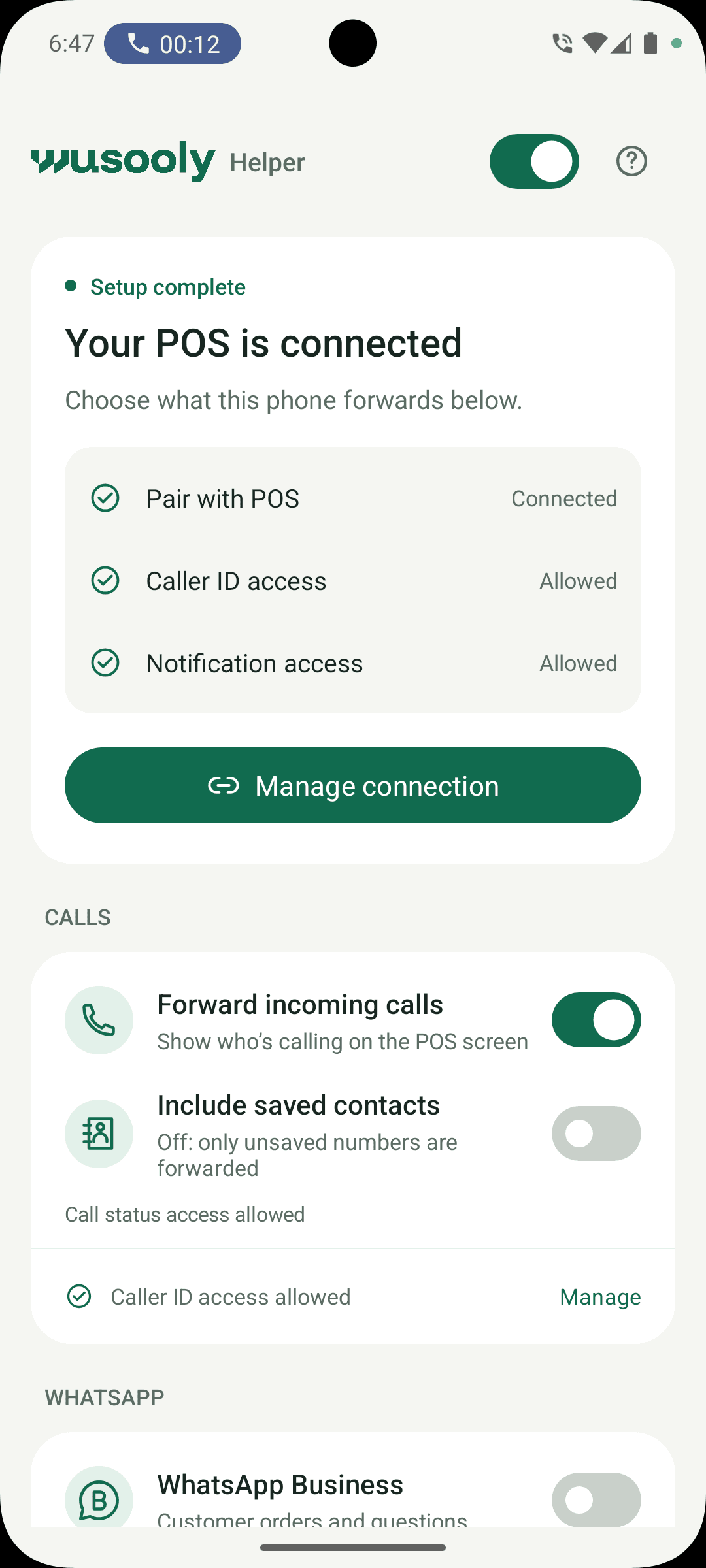
Turn on call forwarding and caller ID. For WhatsApp, pick your apps and allow notification access.
Good to know
Same Wi-Fi
Phone and POS must share a network. Helper reconnects if the POS IP changes.
QR expires in 5 min
Refresh it on the POS, or enter the code manually.
You choose what’s shared
Toggle calls and WhatsApp separately. Data goes encrypted to your POS only; contacts are never uploaded.
How to pair
On the POS
Open the Caller ID settings:
On the POS: MoreCaller IDAdd sourceAndroid phone
Choose Scan QR to show a code, or Enter code to show a short code instead.
On your phone
Open Wusooly Helper and point the camera at the QR on the POS screen.
No camera? Type the code shown on the POS. The POS shows Connected when it’s done.
Still not connecting? On the POS pairing screen, tap Not connecting? to see the POS address, then enter it in Helper.